Change appearance of marker
It is possible to change the appearance of the marker (point) displayed by clicking on the image.

click the data name on the dataset tree.

Hide markers
Uncheck "Annotations" to hide markers.

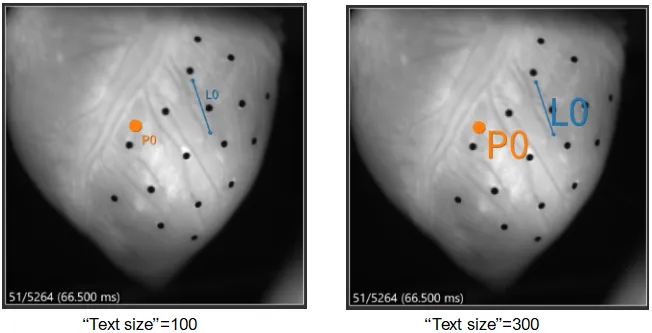
Change text size
Change "Text size".

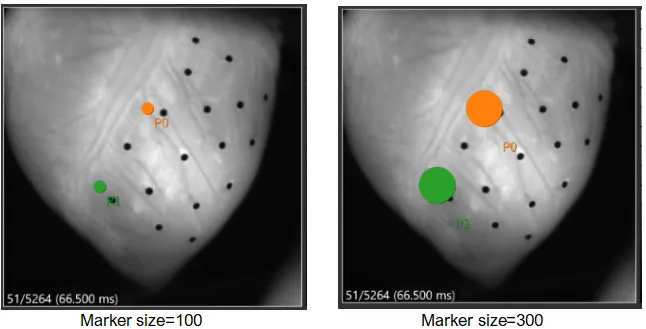
Change marker size
Change "Marker size".

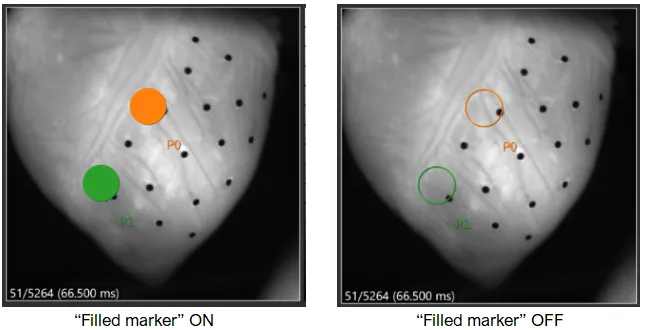
Filled marker
Check/uncheck "Filled marker".

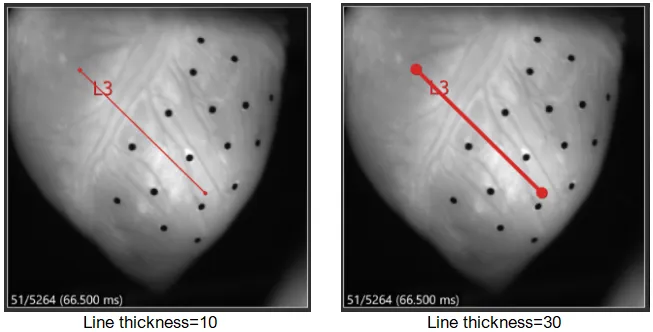
Change line thickness
Change "Line thickness".

Change marker color
click the point name on the dataset tree.

Click "Color" on the area displayed by clicking the point name to show the color pallete.
